

Using ebooks
If you are having difficulties accessing a resource, please contact us.
Start Live Chat or email: library.help@keele.ac.uk.
The Library runs workshops on using ebooks: learn how to locate, navigate and download titles from the ebook collection. See our library events page for availability and to book onto workshops.
Unable to attend? Take a look at our Using ebooks... in a nutshell video which provides a short overview of how to find and use ebooks for your studies.
The easiest way to find and access an ebook is by logging in and searching via Library Search.
Library Search lists all the ebooks that have been purchased by the library for your use, as well as freely available reputable academic texts. Searching and accessing an ebook via Library Search can also cut out some additional logins and navigation but also provide you with important notices regarding access, for example if a resource is temporarily unavailable.
Please keep in mind that ebooks can have a limited number of copies the same way as a print book does. Dependent upon the provider, they will tell you if you try to access an ebook and all copies are currently in use. Some allow you to reserve a copy and be notified when it becomes available.
To access an ebook from Library Search -
- Search for an ebook and look for the 'available online' option that indicates if an ebook is available for that title. Some ebooks may have multiple versions or editions available.
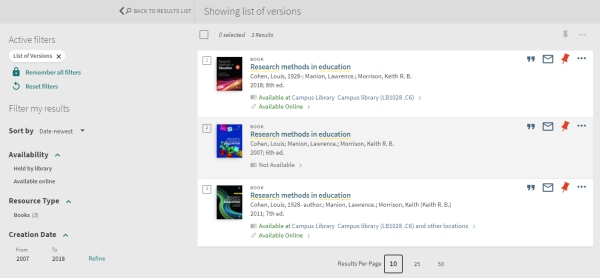
- Click on the ebook title or 'available online' to see the options for accessing the ebook, some may be available from more than one provider and offer a different number of copies.
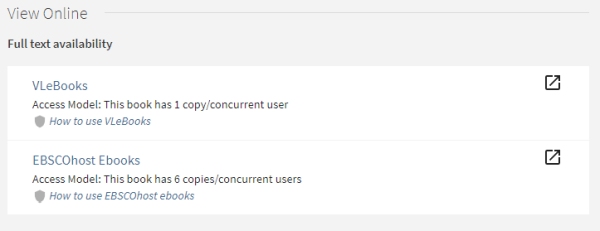
- Click on the ebook provision you wish to access, such as VLeBooks, EBSCOhost ebooks or Ebook Central (EBC) - Keele University access to navigate to the ebook. You may be presented with a Keele University login box, sign in to this with your Keele username and password.
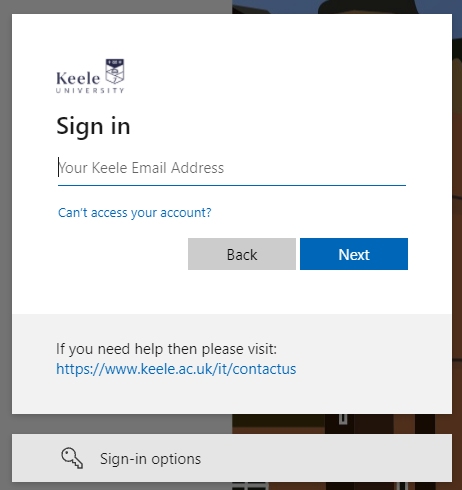
- If you are not automatically logged in, look out for the generic login option and then 'Shibboleth' or 'Institutional' access. Ignore generic password boxes and don't choose ‘OpenAthens’.
- If required select: UK Federation/Higher Education from the options provided.
- Then select: Keele University.
- You should now be presented with the standard Keele login box.
- Not working or further questions? Take a look further down this page for more help with our main ebook providers.
- Still not working? Send details of the ebook and provider you're trying to access it via to library.help@keele.ac.uk or the library eresources team library.eresources@keele.ac.uk – if you can include details of the problem and a screenshot of the error and url/address bar, it'll help us to resolve the problem quickly.
If navigating to VLeBooks doesn't automatically log you in, choose the 'Shibboleth' option, search for 'Keele University' and then log in with your Keele username and password.
When viewing an ebook on the VLeBooks platform you will be presented with the options to 'Read online', 'Preview' or 'Download' for offline viewing on a device such as a tablet or laptop. The options vary between titles due to licences.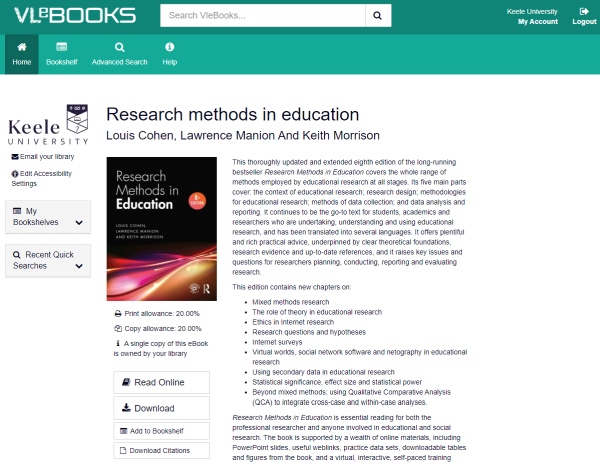
Downloading for offline viewing requires the installation of the VLeBooks App that controls the Data Rights Management (DRM) of an ebook, such as loan length, copying permissions etc. and is dictated by legalities, the publisher, and is outside the control of Keele University. Ereaders such as Kindles, Paperwhites and Kobos are usually incompatible with downloaded ebooks, as the required software or app cannot be installed on these devices. To read eBooks on your PC, Mac, or mobile device you must download and install the VLeBooks App and follow the on-screen instructions to register the app to your device. For help downloading and installing the VLeBooks App, see the App User Guide or the User Walkthrough Guide.
Selecting the 'Download' option on the VLeBooks platform shows a pop-up window that guides you in viewing the ebook on your device, please choose the VLeapp from the drop down and follow the appropriate steps. Where possible when using the VLeBooks platform we would advise downloading just the relevant pages or chapters of the ebook you require rather than the whole ebook, as although there are page limits (which are shown), your access to downloaded pages and chapters does not expire unlike the full ebook.
For help using VLeBooks, see the VLeBooks help page.
If you're using iOS or Apple devices and are having trouble accessing VLeBooks or getting an error message about pop-ups, please see the section below 'I'm using an iOS/Apple device and getting an error message about pop-ups?' for further help.
If navigating to EBSCOhost ebooks doesn't automatically log you in you may be presented with a Keele University login box, sign in to this with your Keele username and password.
When viewing an ebook on the EBSCOhost platform you have the option to read the full text online, often shown as 'PDF Full Text' or 'EPUB Full Text', or the option of 'Full Download' for offline viewing on a device such as desktops. The options vary between titles due to licences.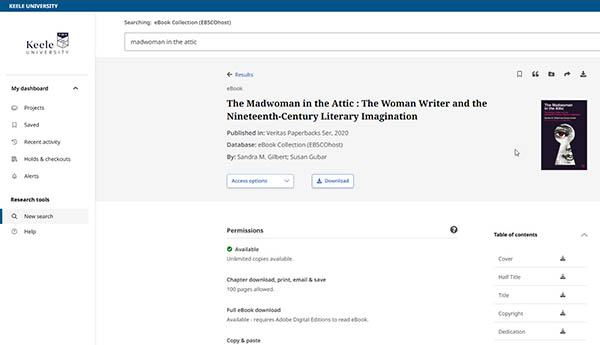
Downloading for offline viewing requires the installation of the Thorium Reader App that controls the Data Rights Management (DRM) of an ebook, such as loan length, copying permissions etc. and is dictated by legalities, the publisher, and is outside the control of Keele University. Ereaders such as Kindles, Paperwhites and Kobos are usually incompatible with downloaded ebooks, as the required software or app cannot be installed on these devices. To read eBooks on your desktop device, such as Windows, MacOS and Linux, you must download and install the Thorium Reader App and follow the on-screen instructions to register the app to your device. For help downloading and installing the Thorium Reader App, see the EBSCO eBooks Basics help page or the Thorium Reader FAQs page. You will also need a personal MyEBSCO account, for help creating a personal MyEBSCO account, see the How to create and manage a MyEBSCO account help page.
Selecting the 'Full Download' option on EBSCOhost shows a pop-up window that guides you in viewing the ebook on your device, please follow the appropriate steps. Where possible when using EBSCOhost we would advise downloading just the relevant chapters of the ebook you require rather than the whole ebook, as although there are page limits (which are shown), your access to downloaded chapters does not expire unlike the full ebook. For help downloading chapters see the How to download a chapter of an EBSCO eBook as a PDF help page.
For help using EBSCOhost ebooks see the EBSCO video tutorials or check the EBSCO system status page.
For guidance on logging into personal MyEBSCO accounts and for resetting your password, see the How to Create and Manage a MyEBSCO Account.
If you experience problems accessing your EBSCOhost account please email us at library.eresources@keele.ac.uk including a clear screenshot/s that shows the error message, the url/web address of the page and a description the problem.
If navigating to ProQuest Ebook Central ebooks doesn't automatically log you in you may be presented with a Keele University login box, sign in to this with your Keele username and password.
When viewing an ebook on the ProQuest Ebook Central platform you have the option to 'Read Online' or 'Download Book' for offline viewing on a device such as a tablet or laptop. The options vary between titles due to licences.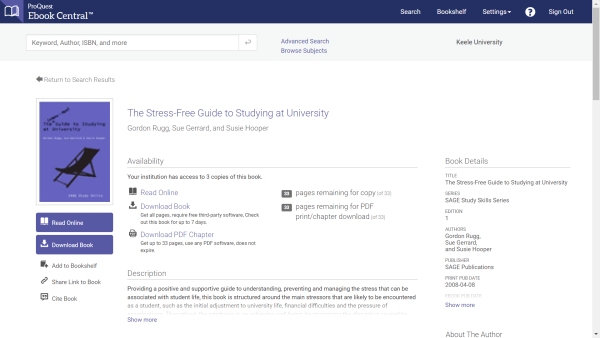
Downloading for offline viewing requires the installation of the Ebook Central Reader App that controls the Data Rights Management (DRM) of an ebook, such as loan length, copying permissions etc. and is dictated by legalities, the publisher, and is outside the control of Keele University. Ereaders such as Kindles, Paperwhites and Kobos are usually incompatible with downloaded ebooks, as the required app cannot be installed on these devices. To read eBooks on your PC, Mac, or mobile device you must download and install the Ebook Central Reader App and follow the on-screen instructions to register the app to your device. For help downloading and installing the Ebook Central Reader app, see the Ebook Central Reader App help page.
Selecting the 'Download Book' option on Ebook Central shows a pop-up window that guides you in viewing the ebook on your device, please follow the appropriate steps. Where possible when using Ebook Central we would advise downloading just the relevant pages or chapters of the ebook you require rather than the whole ebook, as although there are page limits (which are shown), your access to downloaded pages and chapters does not expire unlike the full ebook.
For help using ProQuest Ebook Central, see the Ebook Central help page.
If you experience problems accessing your Ebook Central account, please contact ebooksupport@proquest.com
Ebooks will often allow you to print out a certain amount of pages. The number of pages you are allowed to print is dictated by the publisher and/or copyright law; the library cannot control this.
When you view the details of an ebook on a platform such as ProQuest Ebook Central or EBSCOhost Ebooks, or click print on VLeBooks, it will state how many pages that specific title allows you to print.
For help printing from an ebook, please refer to the help page of the platform you are accessing the ebook on.
This is likely because your iOS device (iPad, iPhone, Macbook) is defaulting to block pop-ups.
To enable pop-ups on the Safari browser on iOS -
- Go to the 'settings' app on your device
- Under settings select 'Safari' from the list
- In the 'General' section toggle 'Block Pop-ups' to off
To enable pop-ups on the Google Chrome browser on iOS -
- Open the Google Chrome internet browser
- Click the 3 dots button in the top right corner of the browser window
- Select 'Settings'
- Select 'Privacy and Security'
- Select 'Site Settings'
- Scroll to 'Pop-ups and redirects' listed under 'Content'
- Toggle 'Blocked' to off
eTextbooks are also becoming more prevalent and differ from ebooks in that they are specific titles subscribed to annually by the University for the use of a small, specific cohort of students. They are usually only available to the specified students they are licensed for and will not appear on Library Search. You are likely to be given access to these by your School rather than the Library.