

Wi-Fi
Please note: If you have ever connected to the Keele University 'Visitor' network, please forget the profile from your device before connecting to eduroam as this may block the connection. For instructions on how to do this, see the below guides in the Self-Service Portal (which open in new browser tabs):
Wi-Fi (eduroam)
eduroam is the University's secure wireless connection to the internet on campus, in the halls of residence and at other members of the eduroam network.
You can find out more about other institutions which use eduroam by downloading the eduroam companion app, available for Android and iOS devices.
Before using the eduroam service, please ensure that you familiarise yourself with the following policies:
Getting Connected (eduroam)
To connect, select the link at the bottom of this page that is relevant for your device, and authenticate with your Keele email address OR username@keele.ac.uk and your password. You can also use the eduroam configuration assistant tool to connect.
Wi-Fi (Magnet)
Students living in on-campus accommodation can connect their games consoles and smart TVs to the Magnet network.
You can manage your device registrations yourself using the device registration portal, removing the need to raise a support call when you want to add a new device.
You will need to log in using your username. For undergraduate students, this is the first five characters of your email address (e.g. a1a11).
Wi-Fi (Visitor)
Visitors to campus can use our self-registration portal to access the Visitor Wi-Fi network.
To access the network, connect your device to the Visitor network. You will then see the following page appear (see image below), either when you have connected to the network or when you try to browse the internet. If this does not happen, fill in the guest registration form to connect.
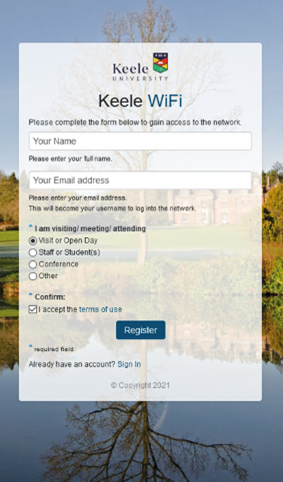
Enter your name, email address, and the reason for your visit, then accept the terms of use and click the Register button.
Please note: Your details will be held for 90 days before being automatically deleted.
Your log in details will be generated and emailed to the email address you have registered with us as well as being displayed on the next page.
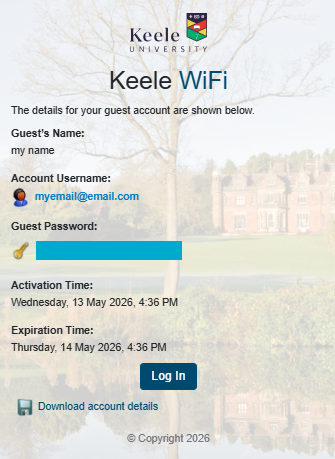
Click Log In to continue. You should now be able to access the Internet.
You will then have access to the Visitor Wi-Fi for 24 hours from that point.
Which network should I connect to?
| I am a... | Which network should I connect to? |
|---|---|
| Keele staff member | eduroam |
| Keele student connecting a phone, computer or tablet | eduroam |
| Keele student connecting a games console or smart TV in student accommodation | magnet |
| Visitor to Keele campus without an eduroam account | visitor |
| Visitor to Keele campus from another institution (with an eduroam account) | eduroam |
Wi-Fi when working remotely
When working remotely, please ensure you are connected to a secure Wi-Fi network.
Your home Wi-Fi network should have a security key which you need to enter to connect for the first time. If it doesn't, the network may be 'open' and therefore insecure.
If working from other remote locations such as public libraries or coffee shops, please be aware that any Keele information you access may be more vulnerable to interception by malicious third parties. Public Wi-Fi is therefore generally regarded as unsafe for work purposes.
Tips for ensuring your connection is as secure as possible:
- Avoid using password-protected sites that contain personal sensitive information, such as social media, online banking, or email. If you do need to access these services, using your mobile phone network will be more secure than a public Wi-Fi hotspot.
- Make sure websites you access are using a secure https connection; the full web address should begin with https:// rather than http:// You may also see a padlock icon to the left of the web address.
- Take some time to ensure you are connecting to a legitimate network; rogue hotspots often have similar names to authentic public Wi-Fi networks. If you're not sure, check the correct name of the Wi-Fi network with a member of staff at the location.
- Change the settings on your mobile device so it will always ask you before connecting to a Wi-Fi network. This allows you to make the decision as to whether or not it is safe to connect.
- Always ensure software is up-to-date and you have anti-virus software running. Keele-owned PCs and laptops have anti-virus software already installed. You can find out more about anti-virus protection for your personal device in the Self-Service Portal.
- If you need to work on confidential information, consider using a Virtual Private Network (VPN). VPN software protects you by encrypting all your network traffic. The Keele VPN is available for staff and students.
The Information Commissioner's Office has more information about Wi-Fi security, including how to check if your network is secure.
Using eduroam away from campus
eduroam can be used in various other places away from the Keele campus. Hotspots are available at other universities, research centres, academies, many schools, and other research and education institutions in more than 100 territories around the world. Please see eduroam connect yourself for more information about where hotspots are available and how to connect.