

How to connect to eduroam on Windows 11
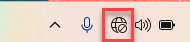
1. Select the Network icon.
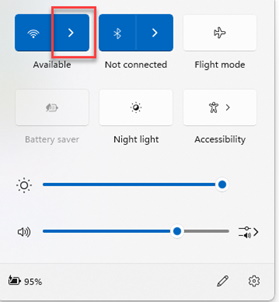
2. Click on the arrow next to the Wi-Fi icon.
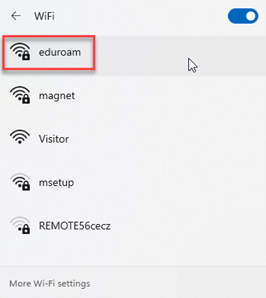
3. Select Eduroam and click Connect.
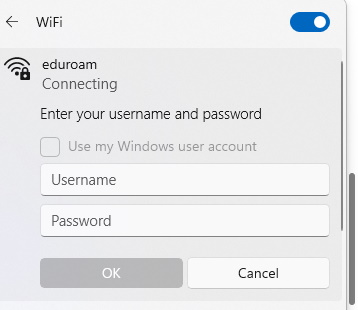
3. Type in your full Keele email address and your password and click OK.
4. Accept the certificate by choosing Connect.
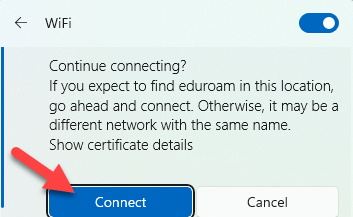 5. You should now be connected.
If your computer does not connect straight away, check your email address and password are correct. If you need to change your saved user details, follow the instructions on how to delete your eduroam profile (in the accordion below). If you still cannot connect, contact the IT Service Desk
If you are having trouble connecting to eduroam, or you need to forget the network because you have changed your password or entered the wrong details, follow these steps:
1. Access Wi-Fi Settings via the Taskbar
- Look at the bottom right of your screen on the taskbar, and click on the Wi-Fi icon.
- In the Wi-Fi panel that appears, click on the arrow next to eduroam (or whichever network you are connected to). If you hover the mouse over it, it will state Manage Wi-Fi connections.
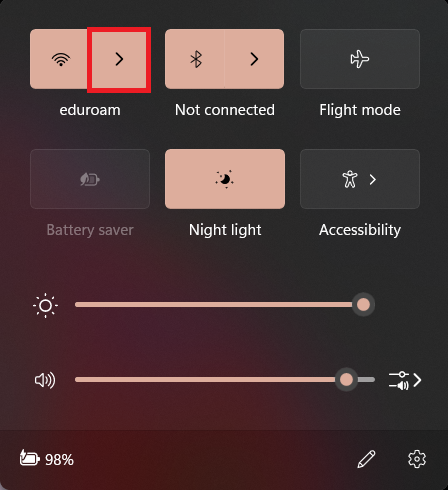
2. Go to More Wi-Fi Settings
- In the Wi-Fi menu, select More Wi-Fi settings at the bottom of the list. This will open the full Wi-Fi settings page.
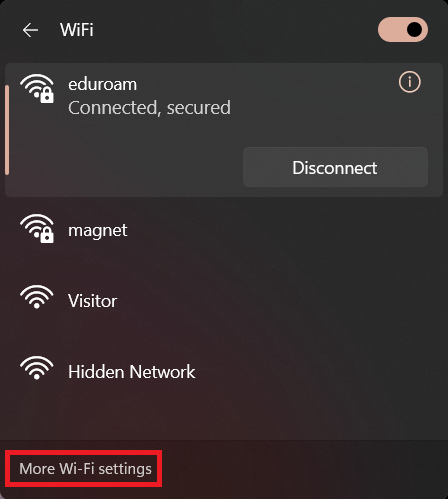
3. Manage Known Networks
- In the new window, under the Wi-Fi settings, scroll down and click on Manage known networks.
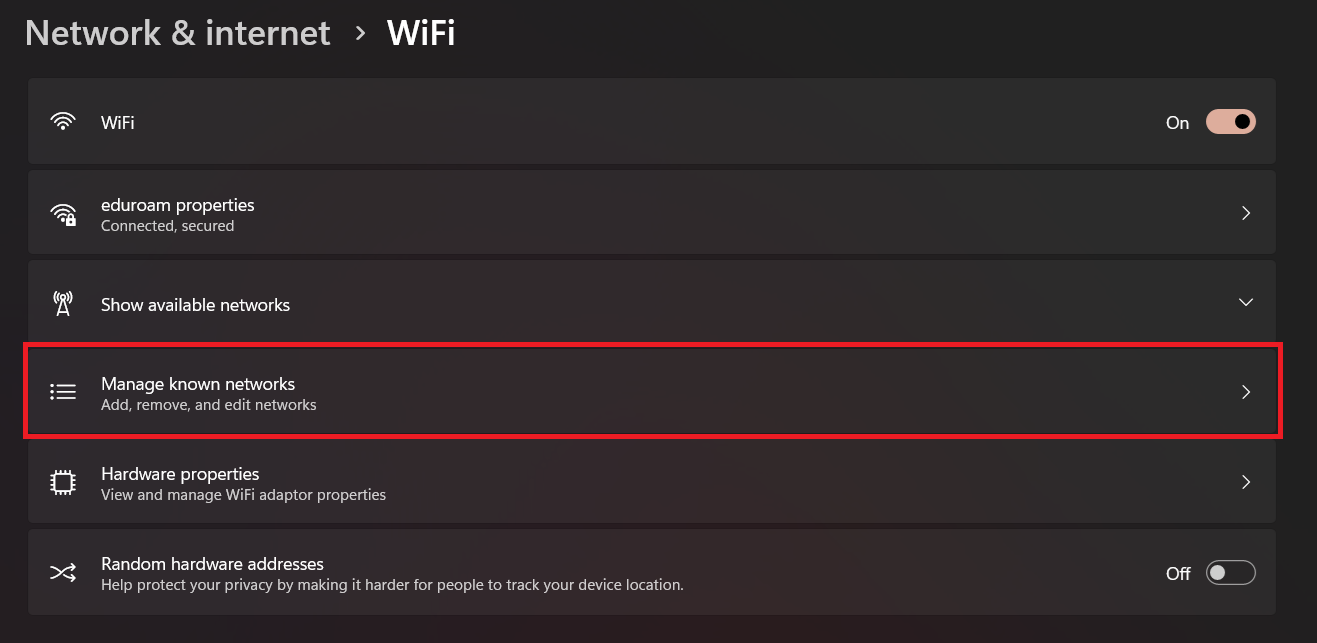
4. Find and Forget eduroam
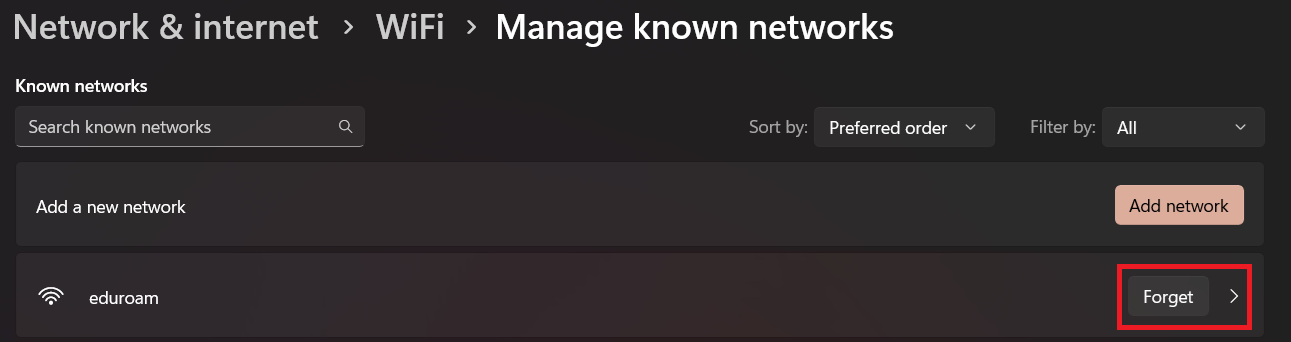
- In the Manage known networks section, you will see a list of saved Wi-Fi networks. Scroll down to locate eduroam.
- Click the Forget button next to the eduroam network.
5. Reconnect if needed
- To reconnect to eduroam, select it from the available Wi-Fi networks and enter your login credentials (i.e. your Keele username and password).