

How to connect to eduroam on Windows 10
Please note: Support for Windows 10 will end on 14 October 2025. From this date, Microsoft will no longer provide free software updates, technical assistance, or security fixes. Your PC will still work but Microsoft recommends moving to Windows 11.
You can find out more information on the Microsoft website.
1. Select the Windows icon next to the clock.
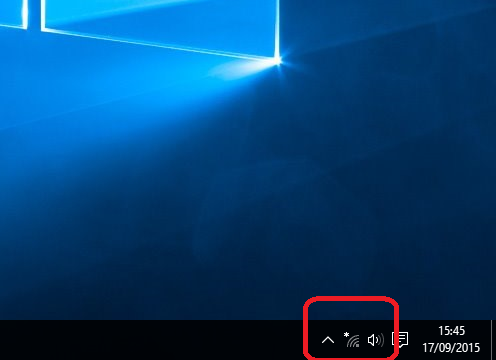
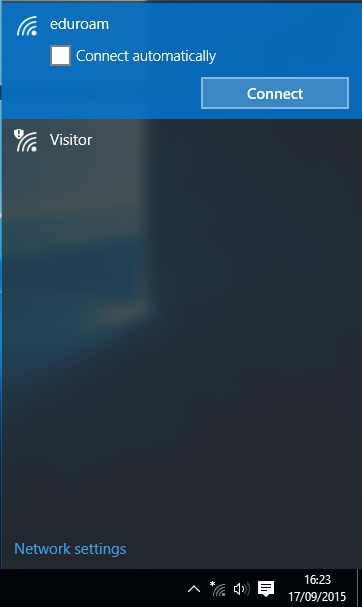
2. Select eduroam and choose Connect.
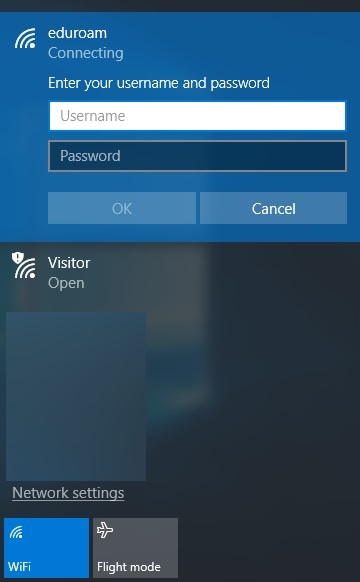
3. Type your Keele Email Address and your Password and choose OK.
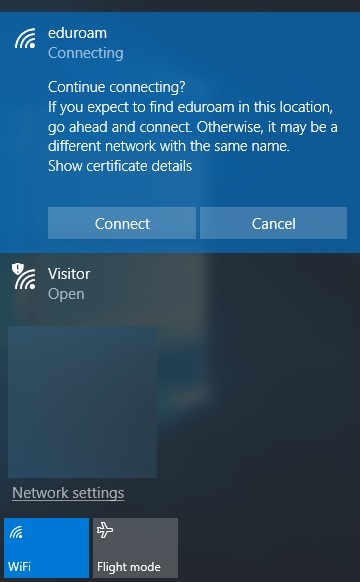
4. Accept the certificate by choosing Connect.
5. You should now be connected.
If your computer does not connect straight away, check your email address and password are correct. If you need to change your saved user details, follow the instructions on how to delete your eduroam profile (in the third accordion section below). If you still cannot connect, contact IT Service Desk.
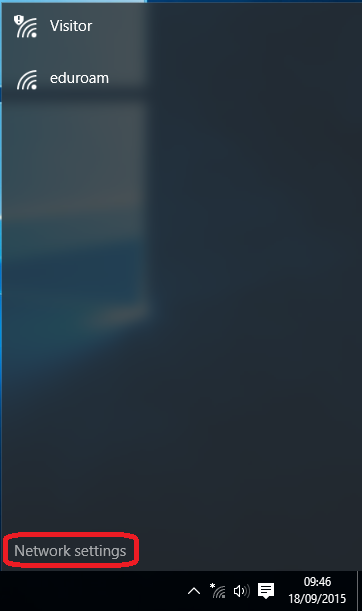
1. Choose the Wi-Fi icon next to the clock.
2. Choose Network Settings.
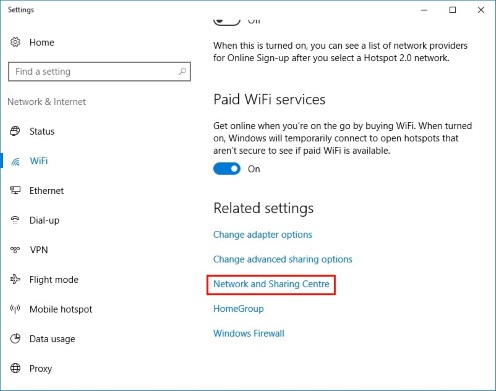
3. Choose Network and Sharing Centre.
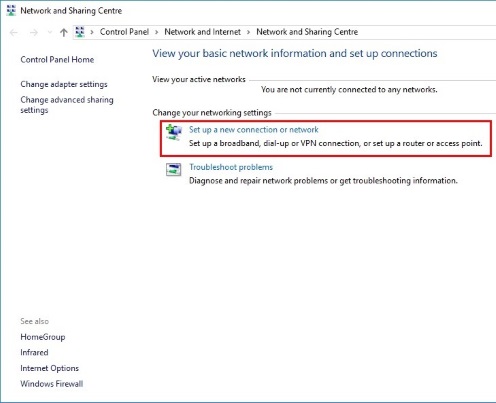
4. Choose Set up a new connection or network.
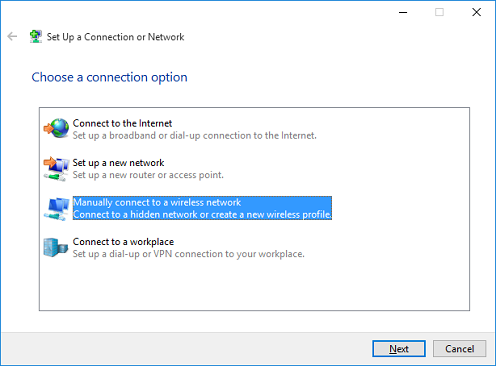
5. Choose Manually connect to a wireless network.
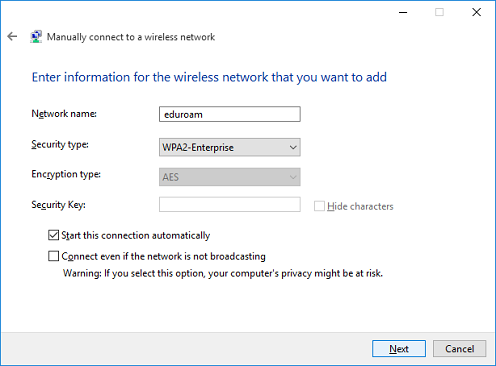
6. Enter the network name eduroam, change the security type to WPA2-Enterprise and select Next.
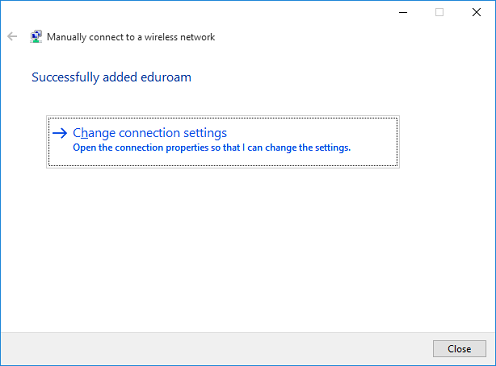
7. Select Change connection settings.
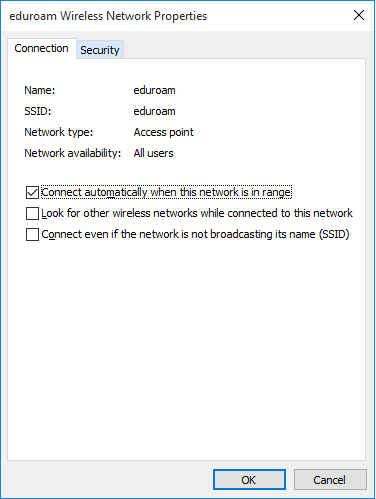
8. Click on the Security tab.
9. Click on Advanced Settings.
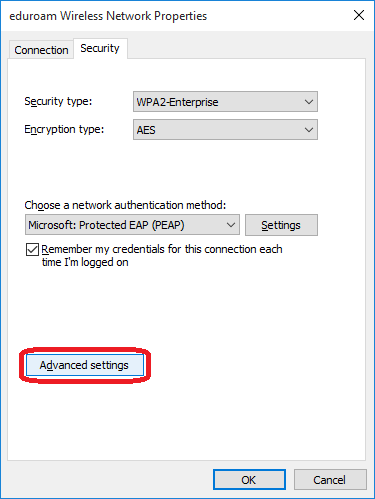
10. Check the box that says Specify Authentication Mode and change the drop down to User Authentication. Then click Save Credentials.
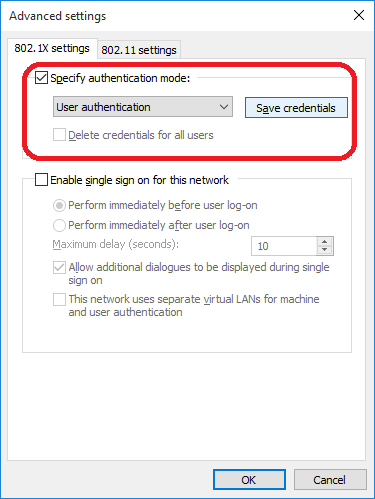
11. Enter your Keele email address and your password and press OK. Then press OK, OK and Close. Select the Wi-Fi icon and select eduroam. Then click Connect.
12. Select Connect to accept the certificate.
13. You should now be connected to eduroam.
If you are still not connected, please check your user account details, or contact the IT Service Desk.
If you change your password, or think you have entered the wrong details, you will need to delete your eduroam account settings.
1. First choose the Wi-Fi icon and then select Network Settings.
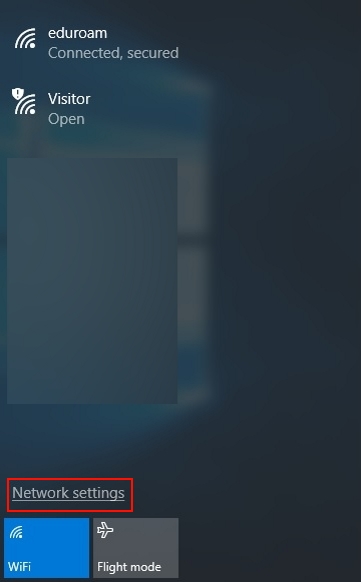
2. Then choose Manage known networks.
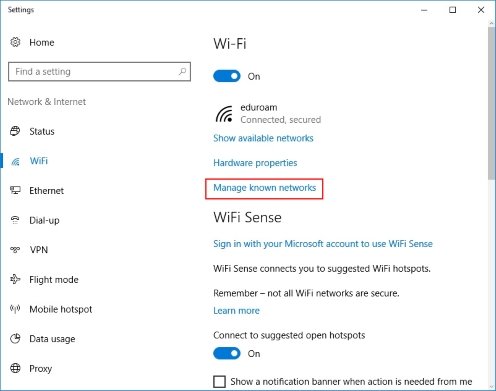
3. Under Manage Known Networks, choose eduroam and then select Forget.