

Chromebook: Connect to Eduroam using ONC File
If you have trouble accessing eduroam on your Chromebook as outlined on the How to connect to eduroam on Chromebook page, you may need to install an ONC file from eduroam to enable you to connect to the network.
Download and use the ONC file
1. Go to the wireless icon and select the Visitor network. This should connect without you needing to enter log-in details.
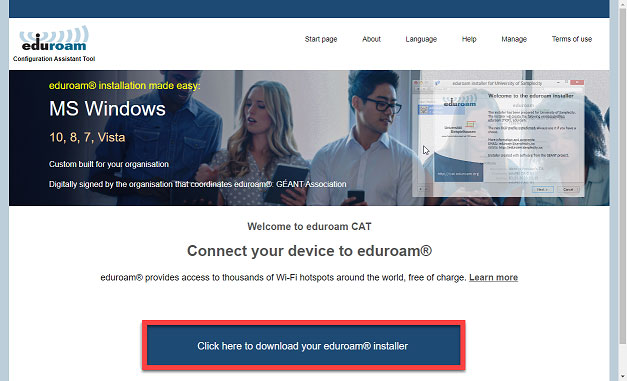
2. Go to http://cat.eduroam.org (opens in new window) and click the Download your eduroam installer button.
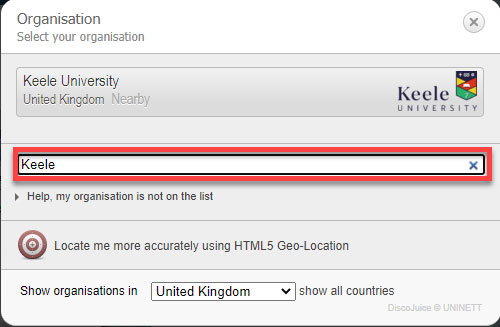
3. You may see a search box appear on screen. If so, search 'Keele'.
4. A download prompt will confirm the ChromeOS option. Clicking this will make a small grey box appear underneath. Click Continue on this grey box.
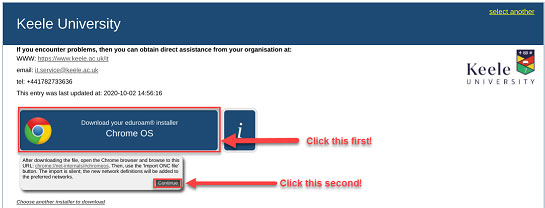
5. A screen will display showing the ONC file downloading to your Downloads folder.
6. Once the file has downloaded, go to the 'Files' application and make sure you have a file called eduroam-chromeos-Keele_University.onc. Don't do anything with the file yet.
7. Open Google Chrome and go to the webpage chrome://net-internals/#chromeos and click the top-most blue link (chrome://network#general)
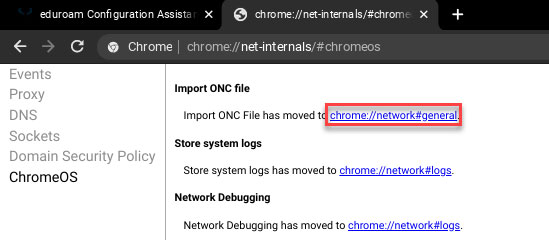
8. When this screen opens, there will be a button at the bottom asking to choose a file to import an ONC file.
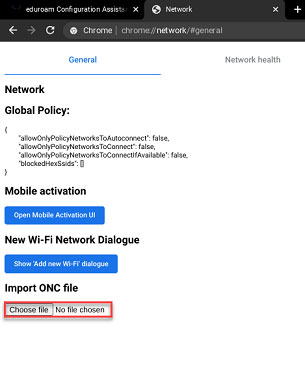
9. Click the button to navigate to the Downloads folder where the file is located. Once you have selected the file, the message will change to the following:
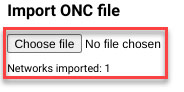
This means the file has now imported and is stored on your machine. You can now close Chrome entirely.
Connecting to eduroam
Now the ONC file has been installed on the Chromebook, you can now connect to eduroam. When you have selected eduroam from the list of available Wi-Fi networks, a box will appear asking for credentials to log into eduroam. Make sure you have set it up to the following:
- PEAP method: Select PEAP
- EAP Phase 2 authentication: Select MSCHAPv2
- Server CA certificate: Select Default
- Identity: Input your Keele email address
- Password: Input your Keele password
- Leave Anonymous Identity blank
- Make sure that Save identity and password is selected for future connections.
- Click Connect