
Setting up and maintaining your staff profile
Staff profile FAQs
Staff profiles on the keele.ac.uk web pages are not automatically updated by IDS. They are maintained by the web team via TopDesk with your help. Please see below for instructions on requesting an update or creating a new staff profile.
Please submit this form with your information; the Web Team will be notified and will get back to you once your profile has been created.
If you already have a staff profile but would like to make some edits, do not re-submit the above form. Please contact the web team via TopDesk with your edits and they will be able to assist you.
Since June 2024, Keele no longer use Symplectic to record publications, and have moved to a new system called Worktribe. Worktribe functions in the exact same way as Symplectic used to - it harvests information on publications to populate your profile, it allows you to add details of your publications, and make these openly available. For more information on Worktribe (new user information), Worktribe outputs module and other useful information please explore Research & Innovation Support Hub.
The Web Team have no access to your Worktribe account and have no way of editing your publications. However, you can find guidance on how to use Worktribe on the links above or by contacting Research Support team on raise.worktribe@keele.ac.uk
On the new staff profile form, you will be asked for your username and this is how we link your profile to your Worktribe account. This means whenever your list of publications updates your profile will update automatically.
The Web Team will be taking new staff photos around the middle of each month from Claus Moser, details will be included in the Daily Digest ahead of each confirmed date.
What if I can't come to campus?
For new staff profiles, you can upload your photo at the bottom of the new staff profile form. If you have an existing profile you can send it to the Web Team via TOPdesk along with a link to your profile.
You can take a photo of yourself using the camera on your laptop or mobile. The photo needs to be high resolution, cropped to 300 x 300 pixels, and less than 300kb but we can make these edits if you're unable to.
LinkedIn offers some great tips for picking the right profile photo.
Please contact us via TOPdesk with the URL to your profile and details of the edits you would like made. You can attach a Word doc of the edits in your message if you would rather.
Please include all edits in one message, you do not need to send a new message for each tab of your profile.
We will contact you to let you know when you can expect the updates to be live on the website.
You may take a new photo yourself as long as you have a mobile phone with a good quality camera. Please note the below photo requirements.
Your photo must be taken with:
- A plain white background (neutral colour is also accepted)
- Good lighting
- Just you in the picture
- Not too close to the camera
- Allow us to crop it to a square (or be square)
Your photo must not have:
- Any shadows over your face
- Glare over your glasses (if applicable)
Here are some helpful tips to assist you in taking a successful photo:
- Make sure light is shining on what you're photographing. If what you're shooting is 'backlit', you'll end up with a muddy silhouette. Check that you're not casting a shadow in the wrong place before taking your shot.
- Soft daylight coming through a window is perfect for lighting. Try to avoid overhead bulbs, they cast shadow under your eyes.
- To help reduce your camera from focusing too much on your background, we recommend standing in front of the wall slightly - do not stand right up against it.
- Avoid wearing overly bright clothes. Clothing should not be the brightest thing in the photo, if in doubt go neutral.
Here is a good example of how your staff photo should look:

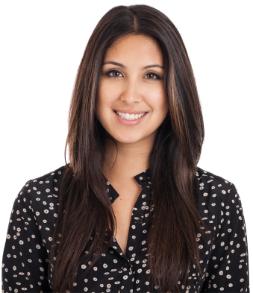
You can send your photo to the web team via TOPdesk and they will update your staff photo accordingly. Once uploaded, this will take 1-2 hours to become live on your profile.
Whether you are requesting a new profile or requesting edits to an existing profile, please send the URLs to where you would like your profile to appear. We will 'mirror' the profile so that the information will be consistent wherever it appears, updates only need to be made once and it will automatically update wherever it appears on the Keele website.
If you or a colleague will be leaving Keele, please let us know via TOPdesk that you would like your profile removed, along with the URL.
If you notice there are multiple profiles that need to be removed, you can send a list of the URLs via TOPdesk.
If you have social media accounts you use for professional purposes, you can include links to your accounts in the new staff profile form or in your TOPdesk message.
If you have an update that you think should be shared with a wider audience, please email Strategic Communications and Brand at news@keele.ac.uk.